ggsave("sizing_small.svg", p,
width = 3.5, height = 3)4 Text and Element Sizing
4.1 Introduction
One of the most common mistakes in figure preparation is manually adjusting text sizes element by element until they “look right.” This approach is inefficient, inconsistent, and defeats the purpose of using themes. This chapter reveals the elegant solution: control text size by adjusting figure dimensions, not font sizes.
Learning Objectives
By the end of this chapter, you will:
- Understand how figure dimensions affect relative text size
- Know the standard figure widths for journals (single vs. double column)
- Learn to use
base_sizeas the primary text sizing control - Understand when and how to adjust individual element sizes
- Know the difference between DPI for vector vs. raster formats
- Be able to create publication-ready figures at the correct size on the first try
4.2 The Key Insight
The Smart Way to Control Text Size
Don’t manually set font sizes for every element!
Instead, use smaller figure dimensions to make text appear larger relative to the plot.
Then use vector formats (SVG/PDF) for infinite resolution.
4.3 Visual Demonstration
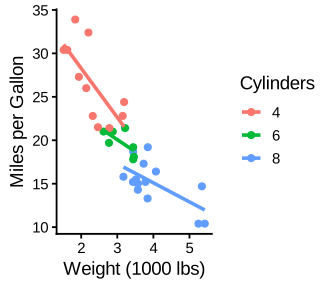
Small canvas (3.5 × 3 inches)
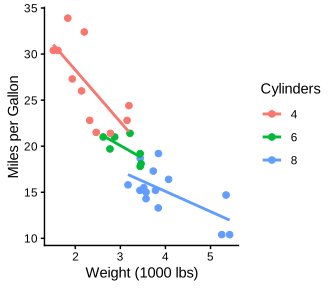
Text appears large relative to plot
Large canvas (7 × 6 inches)
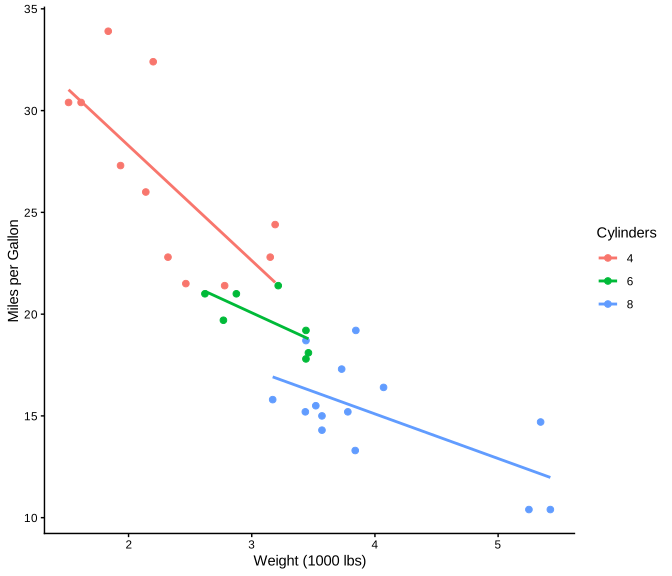
Text appears small relative to plot
ggsave("sizing_large.svg", p,
       width = 7, height = 6)
4.4 base_size Effect (theme_classic(base_size = x))
`geom_smooth()` using formula = 'y ~ x'
`geom_smooth()` using formula = 'y ~ x'
base_size = 8
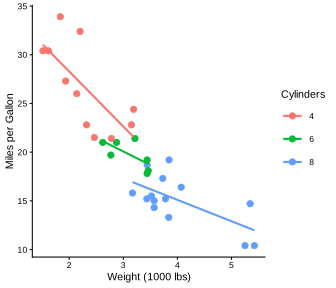
base_size = 11 (default)
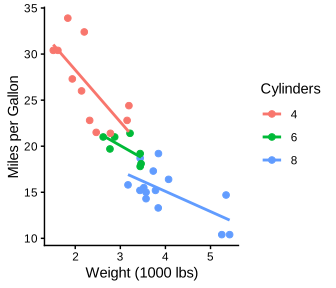
base_size = 14
Other elements scale relative to base_size:
axis.title:1.1× base_sizeaxis.text:0.8× base_sizelegend.text:0.8× base_size
Use base_size as the PRIMARY adjustment - only customize individual elements if needed
4.5 The Right Workflow
Three-Step Process
- Set dimensions to match final output size
- Journal single column: ~3.5 inches (Always check specific journal guidelines!)
- Journal double column: ~7 inches
- Presentation: ~10 inches
- Adjust
base_sizeif needed- Only fine-tune if text still too large/small
- Adjust individual elements if needed
- Use
theme()to customize specific text sizes - Only if steps 1-2 don’t achieve desired result
- Use
Why This Works
- Text/points/lines have fixed sizes
- If the canvas is small they appear larger
4.6 When you must adjust some sizes individually
Default (base_size = 11)
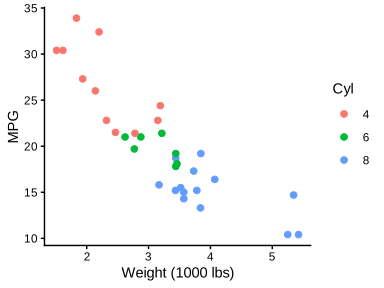
p + theme_classic(base_size = 11)With manual adjustments
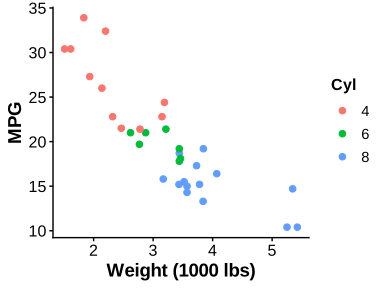
p + theme_classic(base_size = 11) +
  theme(
    axis.title   = element_text(size = 14, face = "bold"),
    axis.text    = element_text(size = 12),
    legend.title = element_text(size = 12, face = "bold"),
    legend.text  = element_text(size = 11)
  )
4.7 Vector vs Raster: Key Differences
Vector Formats (SVG, PDF)
Dimensions control text/element proportions, not quality!
- Scale infinitely without quality loss
- DPI is ignored
- What matters: aspect ratio & relative proportions
# Text larger in small.svg
ggsave("small.svg", p,
       width = 3.5, height = 3)
ggsave("large.svg", p,
       width = 7, height = 6)
Raster Formats (PNG, TIFF)
DPI controls pixel count and quality!
- Fixed resolution, can pixelate when scaled
- DPI matters (300+ for print)
- pixels = width × DPI
# 1500×1200 pixels
ggsave("plot.png", p,
       width = 5, height = 4, dpi = 300)
# 360×288 pixels
ggsave("plot.png", p,
       width = 5, height = 4, dpi = 72)
4.8 Summary
Key Takeaways
- Size figures to match final output - not to match your screen
- Standard journal widths:
- Single column: ~3.5 inches (check specific journal!)
- Double column: ~7 inches
- Presentation: ~10 inches
- Use
base_sizeas primary control - all theme elements scale proportionally - Smaller canvas = larger text - text is fixed size, reducing plot area makes it relatively larger
- Vector formats ignore DPI - SVG/PDF scale infinitely, dimensions control proportions
- Raster formats need high DPI - PNG/TIFF at 300+ DPI for print quality
- Manual adjustments last - only customize individual elements if dimensions + base_size aren’t enough
- Test at final size - view your saved figure at actual publication size to check readability
4.9 Exercises
Try It Yourself
Create a plot and save it at three different widths:
p <- ggplot(mtcars, aes(mpg, hp)) + geom_point() + theme_classic()
ggsave("single_col.pdf", p, width = 3.5, height = 3)
ggsave("double_col.pdf", p, width = 7, height = 5)
ggsave("slide.pdf", p, width = 10, height = 6)
Open each PDF and compare text sizes - notice how smaller canvas makes text appear larger
Try different
base_sizevalues (8, 11, 14, 18) at the same figure dimensionsCreate a PNG at the same dimensions but different DPI values (72, 150, 300)
Look up your target journal’s figure requirements - what are their single/double column widths?
4.10 Further Reading
- ggplot2 theme reference - all theme elements
- Journal figure size requirements - example from Elsevier
- Understanding DPI vs resolution - technical details
- Wickham (2016). ggplot2: Elegant Graphics for Data Analysis - Chapter 8 on themes